 Tripod Devices
Run iOS and Android side by side on one Mac.
Simulators, emulators and real phones in one native window. Start an iPhone simulator and an Android emulator together in Lean mode, then inspect, log, build and run on either.
Alpha, Apple silicon, macOS 26.4 or later
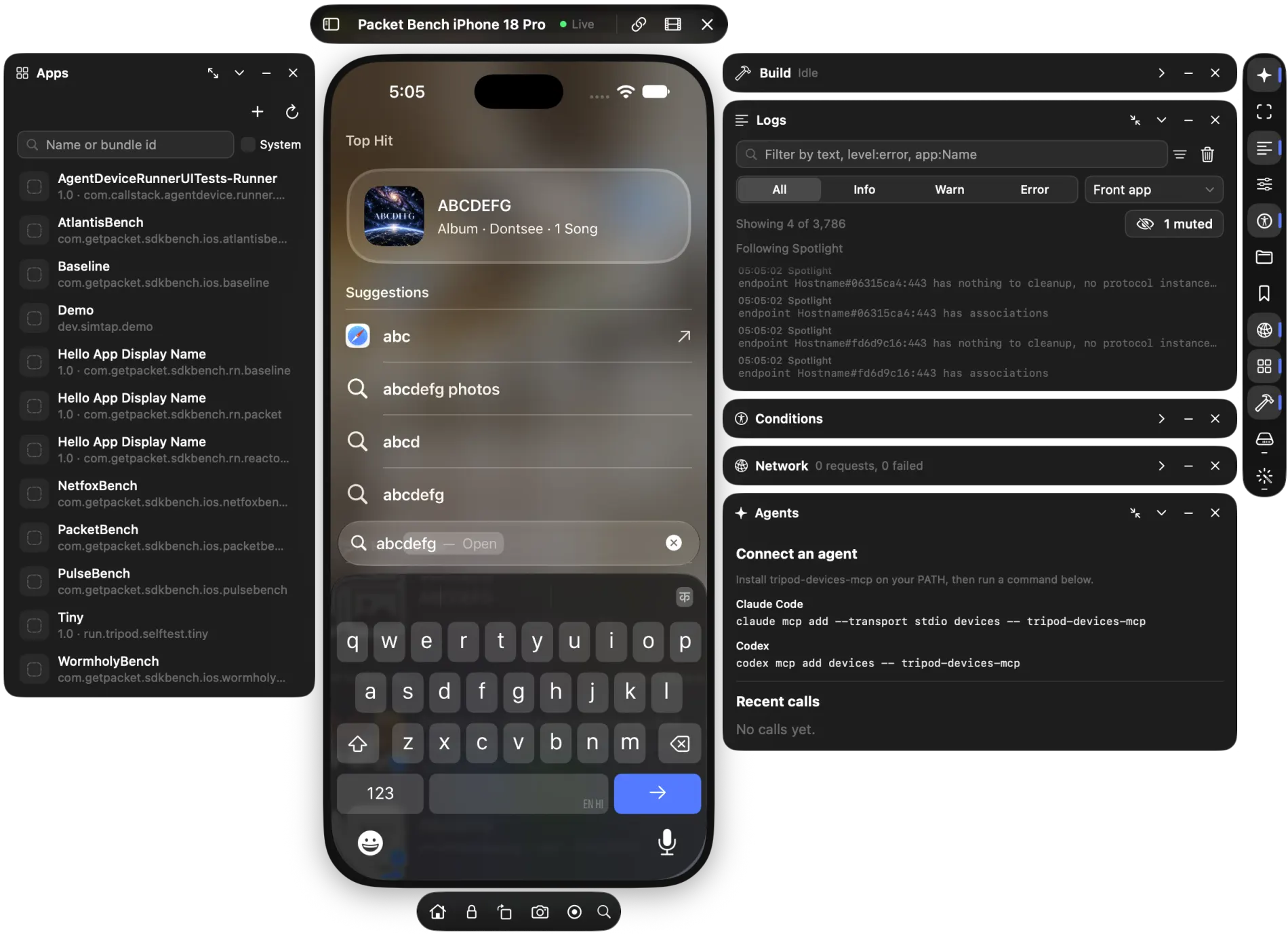
See the pair run
A short walk through the alpha.
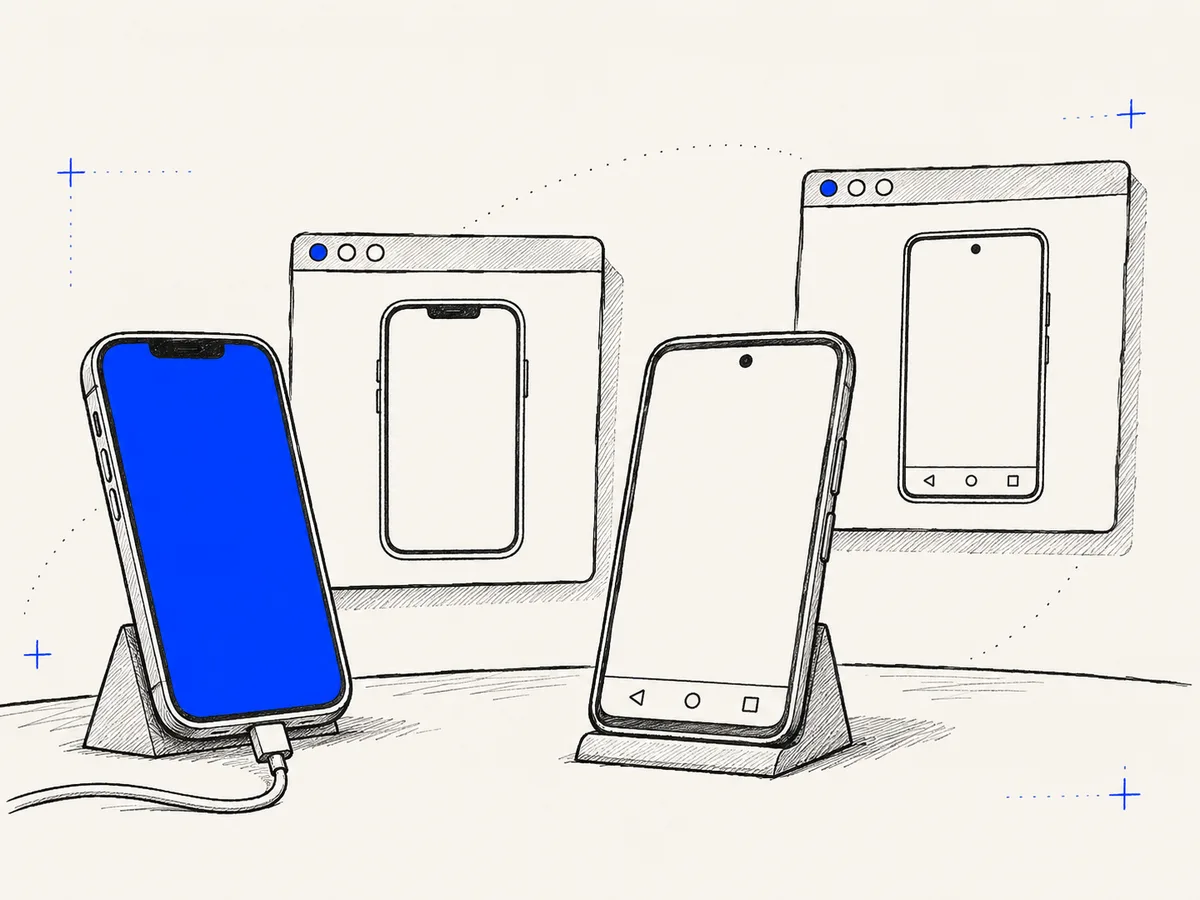
Five kinds of device in one window.
The same list, the same stage and the same panes for all of them. When a device can't do something, the app says so and says why.
iOS Simulators
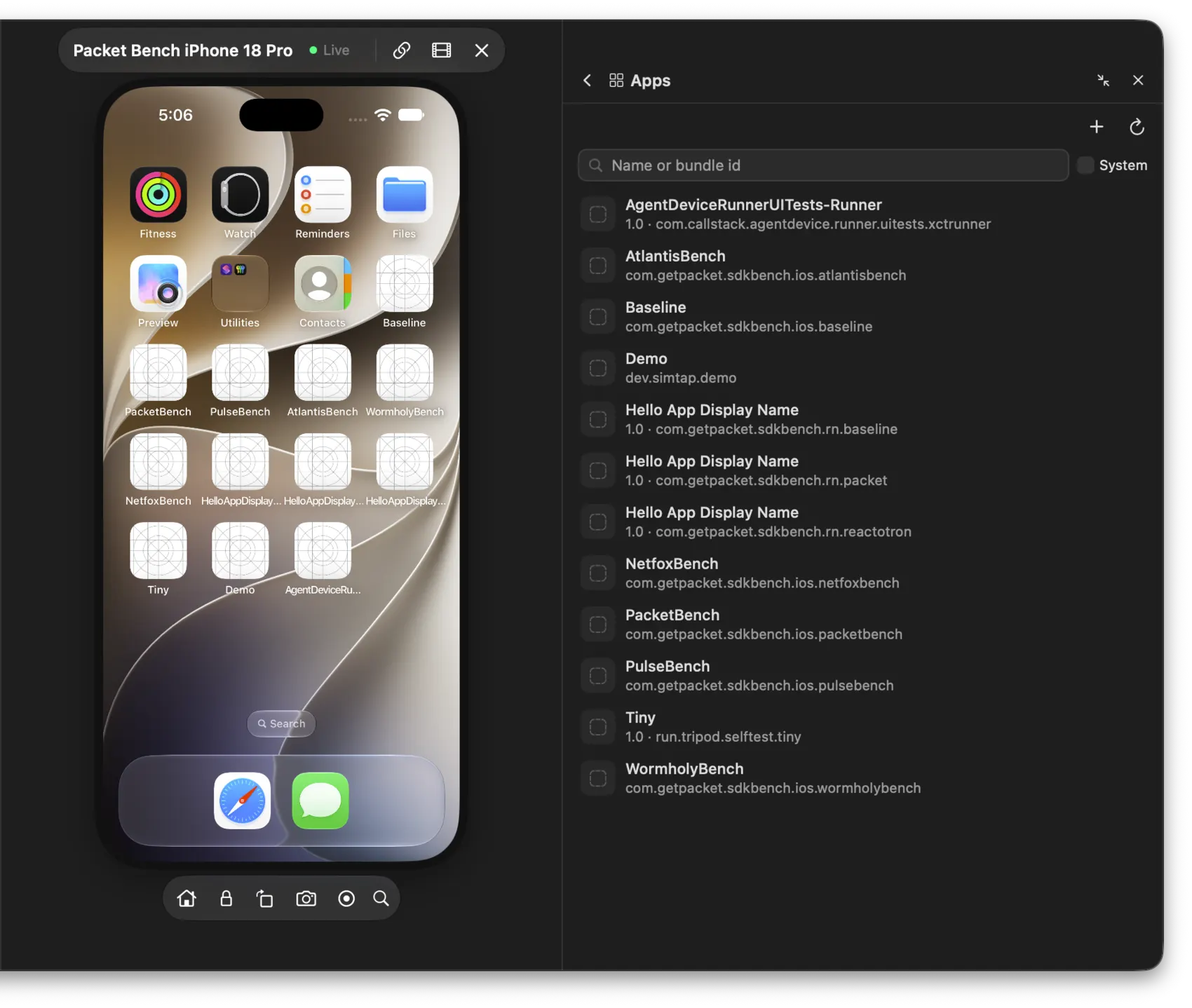
Boot, install, launch, tap, type, read the UI tree and the logs. The mirror shows the simulator's live surface.
Apple Watch simulators
Screen, touch, the Digital Crown and the side button, in a watch frame.
New in the alpha.
Android emulators
Boot and erase them, tap, type, read the UI tree and logcat. Lean emulators use less memory.
iPhones
A live screen on your Mac over USB. With Developer Mode on, you get touch and typing. With it off, the screen is view only.
Wi-Fi after a one-time pairing is the least tested route.
Android phones
Live screen, taps, typing and the UI tree through a small helper on the phone, which needs Android 12 or newer. Logs come from logcat.
Wireless debugging works on Android 11 and newer.
Compact by default. Full window when you want it.
A new install opens compact: the phone in the middle, tools in cards beside it. Switch to the full window for a device list and a labelled tool list. Your session, open tools and selected device carry over.
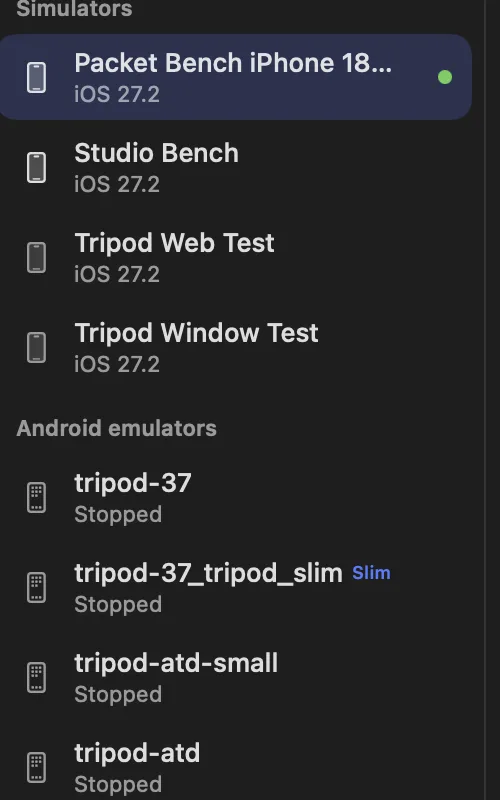
iOS and Android together, in Lean.
One action starts an iPhone simulator and an Android emulator in Lean, the profile that costs the least memory. The simulator takes the stage and the emulator opens in a window beside it. Both are live, both take input, and one Stop puts everything back.
Set up the pairiOS Simulator
on the stage
Android Emulator
in a window beside it
One action, three ways in
Device > Start iOS + Android in the menu bar, the welcome card, or tripod-devices pair-start from a shell. An agent calls device_pair_start and gets the same pair.
Undoable by design
Lean turns off optional background services on a shut-down simulator and boots the emulator as a managed Lean copy, so your original AVD is never written. Stop restores what Lean changed.
A readout that measures
Memory footprint and CPU for each device, and their sum, taken from the host processes behind them. A half that is not Lean says so and says why.
Checks the room first
Both boots are counted against your memory reserve before either starts. If they will not fit, the refusal names the gigabytes needed and available.
Every tool follows
Inspector, Logs and Network read the device on the stage. Control-Command-P swaps which half is up front, without reconnecting either.
What we measured
On an M4 Mac mini, the highest Lean median sat at least 7.3 GiB below stock for an iOS Settings workload, and at least 2.8 GiB below stock for an API 36 emulator. Both are single-workload observations from earlier builds. The docs give the method and the caveats.
It behaves like a Mac app.
- SwiftUI and AppKit, with a menu bar, keyboard shortcuts and windows you can move to another display.
- The Device menu keys follow Simulator and the Android emulator: Home, Lock, Rotate, Save Screenshot, Shake and Back.
- A click is a tap and a drag is a finger. The scroll wheel scrolls iOS, and Option-drag or a trackpad pinch gives you two fingers.
- A device can pop out into its own window. It remembers its frame and keeps the phone’s shape when the device turns.
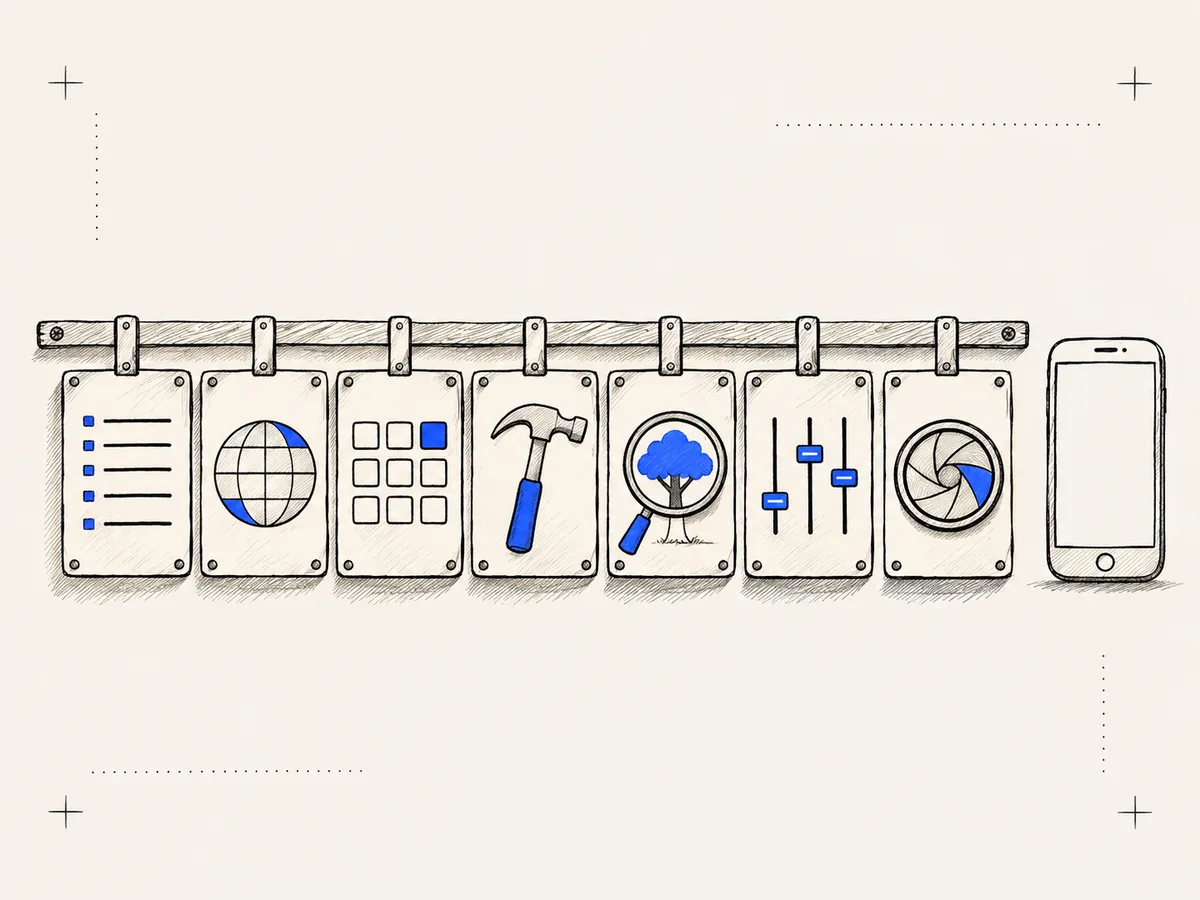
Inspect, log, watch the network, build and run.
Each tool is one tab in a group on the rail. The group remembers its last tab.
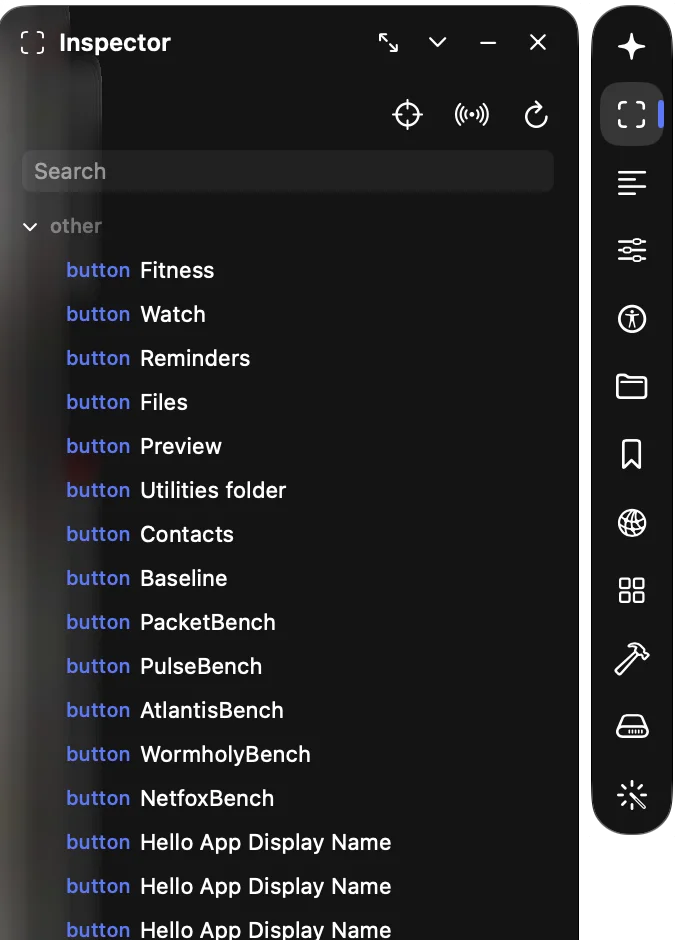
The screen as a tree of elements: role and label for each. Turn on Inspect mode and point at the mirror to outline an element, pin it, copy its selector and measure the gaps between two.
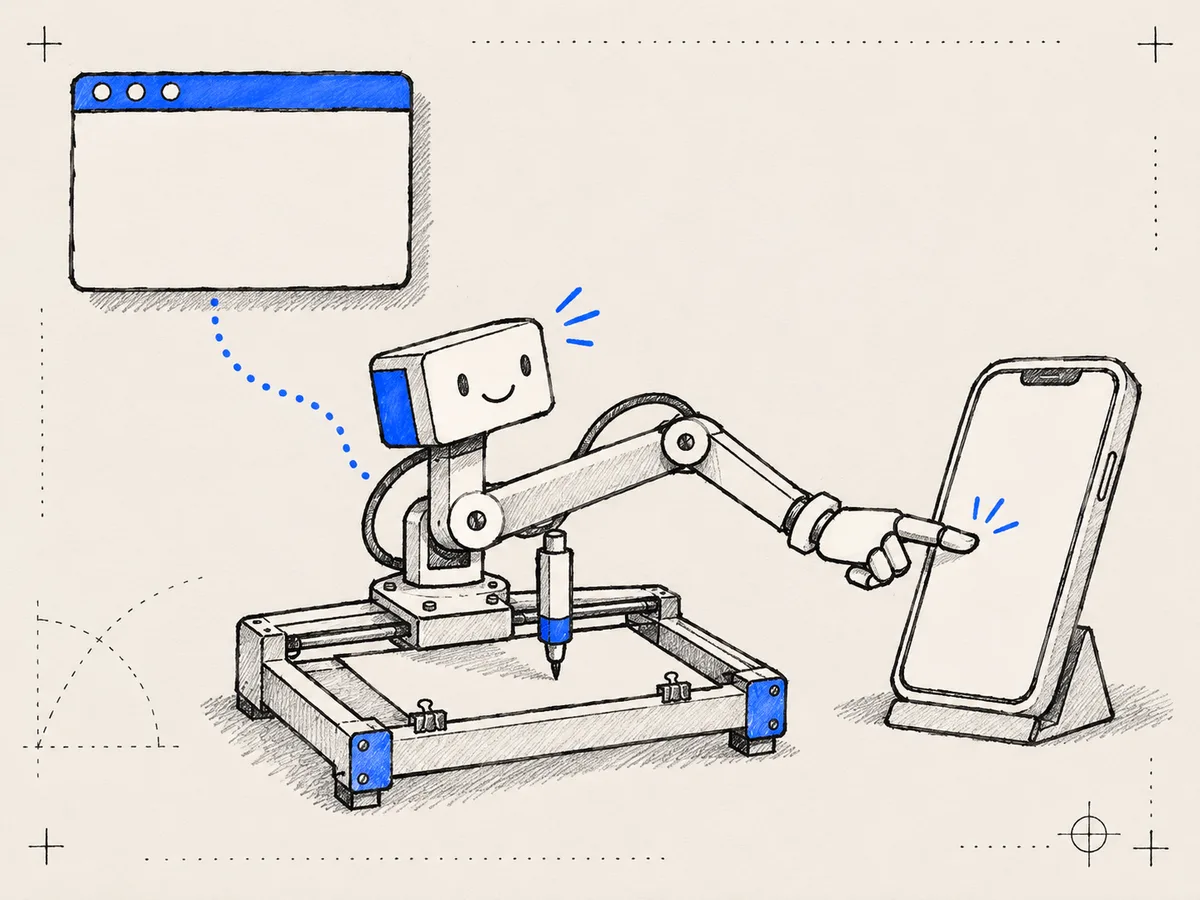
Your agent gets the same controls you do.
The app holds the devices, and the agent borrows them over a local socket. The MCP server and the CLI expose the same tools, and bundled skills teach an agent the loop, the pair, debugging, build and run, and mobile web.
Reproduce a bug on the device you opened
device_openRequest access to the exact device you selected.
device_snapshotRead the screen as text, with refs for each element.
device_tapTap a selector and wait until the screen settles.
device_screenshotCapture the screen after the action.
device_closeEnd the agent’s session on that device.
Connect it
$ tripod-devices install --global# or register by hand$ claude mcp add tripod -- mcp$ codex mcp add tripod -- mcp
tripod-devices install links the CLI, registers the server with Claude Code and Codex when they are here, and copies the skills.
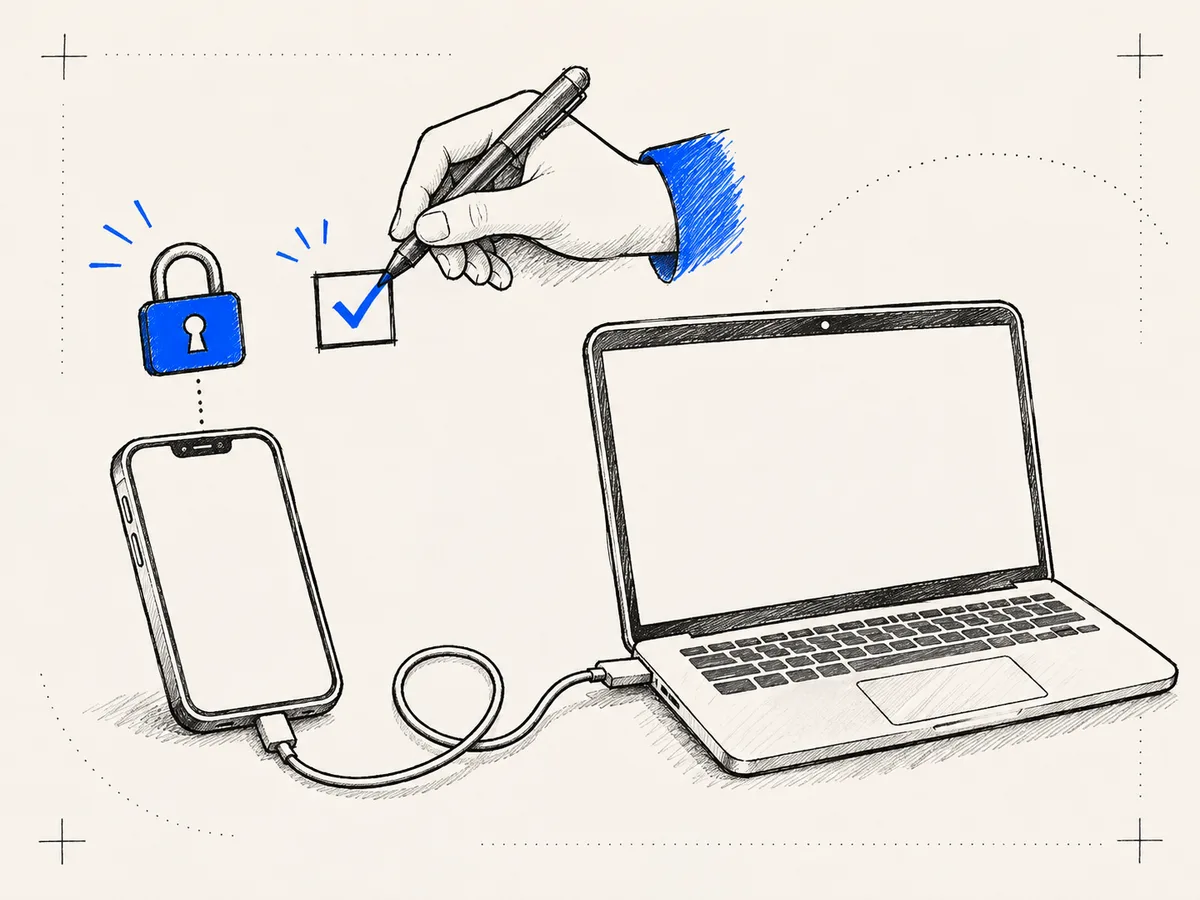
Real phones ask first.
The window shows who is asking and for which phone. Nothing reaches a real phone until you say yes, and that includes reading its screen.
Simulators and emulators can be allowed for all agents with one setting. A real phone is always asked in the window, and read tools count, because its screen is personal.
Skills
Five skills install for Claude Code, Codex and Cursor: the core device loop, the Lean pair, debugging, build and run, and mobile web.
CLI
Every tool is also a command, for scripts and for you. tripod-devices shell holds one lease across many commands.
$ tripod-devices tap sim:UDID --selector.id signIn --settleLeases
A lease lasts as long as its connection. If cleanup can't be confirmed, the app keeps the claim instead of guessing. Your own input in the window wins over an agent's gesture in progress.
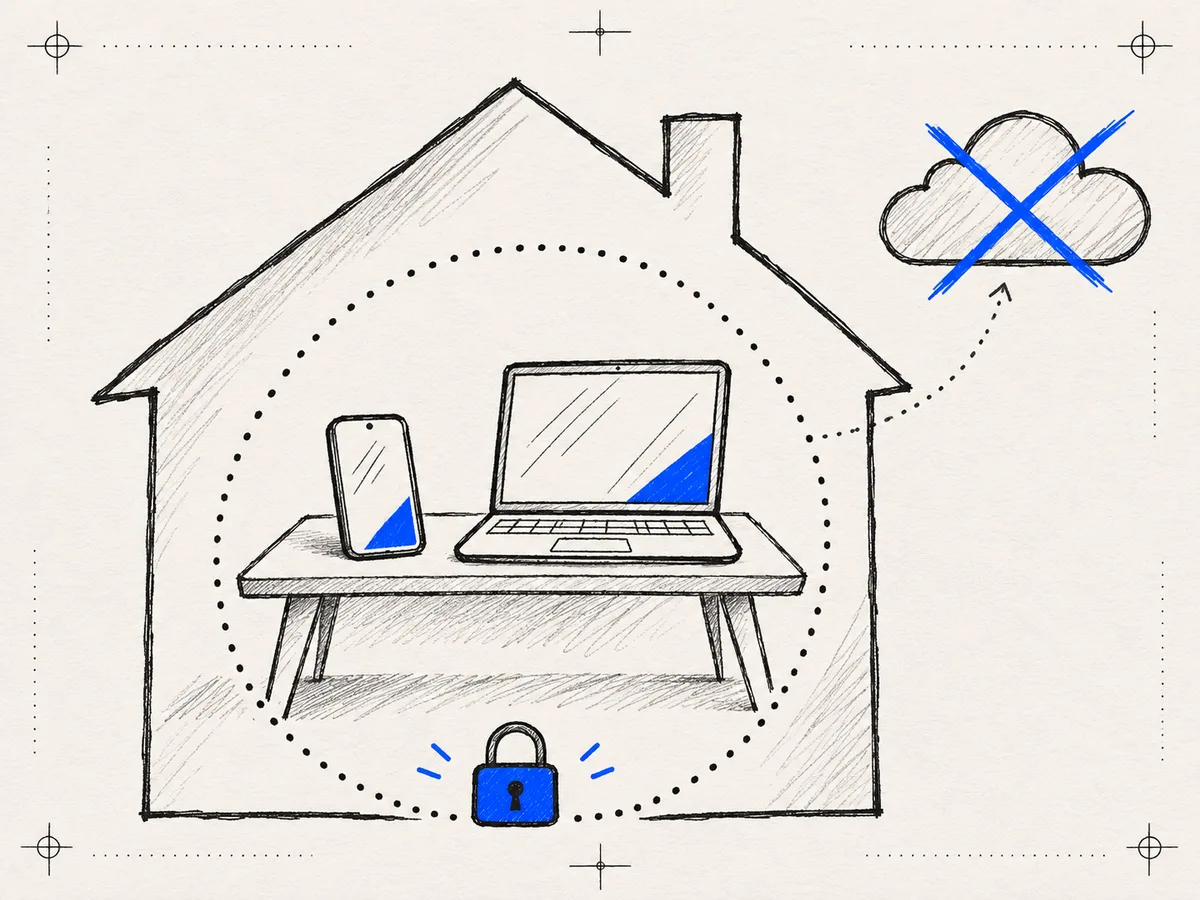
Everything runs on your Mac.
No account, no sign-in. The agent socket is a file in your Library folder that only your user can open.
- The app has no analytics or telemetry code.
- Screens, OCR and logs are handled on this Mac. OCR runs Apple's Vision on the frame already in memory.
- Send Feedback saves a report you can read first. Nothing is sent over the network.
- Release builds check for an update. That is the one thing the app does over the network on its own.
One thing to know
Whatever an agent reads from a device goes to the model you connected it to. That part is between you and your provider, which is why a real phone asks you first.
Try the alpha.
It is an early build. Expect rough edges, and tell us about them. Simulators and emulators come from your Xcode and Android SDK installs, and the app lists what it finds.
- Alpha
- Apple silicon
- macOS 26.4 or later
- Local, no account
Questions
Yes. The window stands on its own, and the CLI is there for scripts.
A Mac with Apple silicon on macOS 26.4 or later. Simulators come from Xcode and emulators from the Android SDK. The app lists what it finds.
No. The pair is one simulator and one emulator, because Lean is a virtual-device profile. Real phones sit in the same list and open on their own.
Anything that speaks MCP over stdio. The installer sets up Claude Code, Codex and Cursor, and the docs cover the manual commands.
No. A real phone is always asked in the window, for that phone, and reading its screen counts.
Yes, in the browser that is on the device: Safari on a simulator, Chrome on an emulator or phone. A dedicated web tool is planned. The docs say what works now.
We have no published speed numbers yet. Every response carries its own timing, and we will publish what we measure, with the method.